고객 서비스

판매자들은 가입하면 더 많은 혜택을 누릴 수 있습니다.

모든 주문 무료 배송.

데스크톱 구성 요소

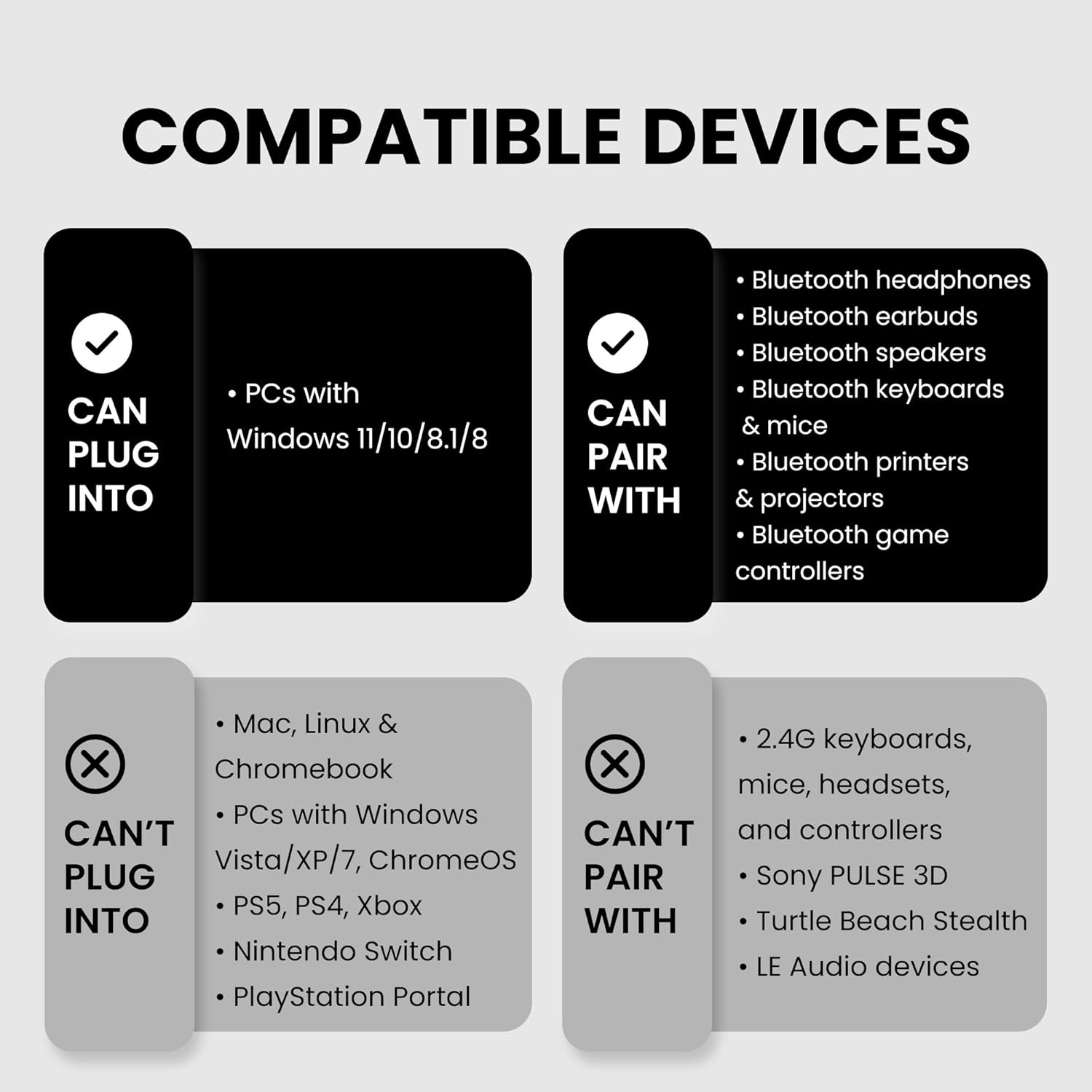
Avantree DG45 USB Bluetooth Adapter Dongle for PC, Computer, Desktop & Laptop, Compatible with Windows 11/10/8.1/8 Only - Connects Bluetooth Headphones, Speakers, Keyboards & Mice ONLY (Not 2.4G/WiFi)

4.30

지난 32시간 동안 판매됨 23

$ 7.99
$ 9.00
-12.64%

I use this dongle daily and it works perfectly. It's very cheap, sits at the back of my PC and does what it needs to do. There are a lot of expensive bluetooth dongles out there but this one does the job for less. Works perfect with Windows 10 or 11 which is what i use it with and I have found it to be compatible with jabra and apple headphones. Connects nicely, haven't had any connection issues ever.

25 현재 누군가가 웹사이트를 탐색 중입니다.

Style
Bluetooth Adapter 4.0 Bluetooth Adapter 5.0
수량:
- +

예상 배송 시간: 12~26일(국제), 3~6일(미국)

구매일로부터 45일 이내에 반품이 가능합니다. 관세 및 세금은 환불되지 않습니다.

  • ASIN:

    B08GM1MV6B

  • BEST_SELLERS_RANK:

    #11 in Bluetooth Network Adapters

  • CUSTOMER_REVIEWS:

    4.3 4.3 out of 5 stars (27,834) 4.3 out of 5 stars

  • DATE_FIRST_AVAILABLE:

    August 24, 2020

  • IS_DISCONTINUED_BY_MANUFACTURER:

    No

  • ITEM_MODEL_NUMBER:

    BTDG-45

  • ITEM_WEIGHT:

    0.071 ounces

  • MANUFACTURER:

    Avantree

  • PRODUCT_DIMENSIONS:

    0.83 x 0.47 x 0.24 inches

안전한 결제를 보장하세요

제품 상세 정보
Specifications If your computer has built-in Bluetooth or you previously used another Bluetooth USB dongle, please disable or remove them before using DG45. Having multiple Bluetooth drivers installed may cause conflicts and prevent proper pairing. How to do it: Open Device Manager → Bluetooth, disable the built-in Bluetooth (if any). Then go to Add or Remove Programs and uninstall any previously installed Bluetooth dongle drivers (such as BlueSoleil, CSR Harmony, or Widcomm). After plugging in DG45, the Bluetooth driver will install automatically on most Windows 11 / 10 / 8.1 / 8 systems. Please wait a moment until the installation is completed. If Bluetooth does not appear: Unplug the adapter, restart your PC, and plug it in again. Manual driver installation (if needed): If the driver does not install automatically, you can download and install the driver manually from our official support website. Note: If the Bluetooth icon does not appear on the taskbar, Bluetooth may still be installed and working. Please go to Windows Settings → Bluetooth & devices → More Bluetooth options, and check “Show the Bluetooth icon in the notification area.” Put your Bluetooth device into pairing mode first before searching. Then go to Windows Settings → Bluetooth & devices → Add device, and select your device from the list. Important: Most pairing issues occur because the device is not properly put into pairing mode. If the device is not in pairing mode, it will not appear during the search. After pairing, open Windows Sound Settings and set your Bluetooth headphones or speakers as the default output device. For headsets with a microphone, make sure the correct input device is selected as well. If you are using meeting software (such as Teams, Zoom, or Skype), please select the same Bluetooth device as the audio input and output within the app settings.
고객 리뷰
4.30

(100 점수)

5
8
4
3
3
6
2
13
1
70
댓글 취소
댓글을 남겨주세요

20 논평

Bra till HA
2025-12-23    -Tobias Antonsson

Fungerade fint i min Home Assistant applikation

I really *needed* a satellite keyboard for my standing desk. But I had nothing but trouble with my built-in bluetooth...maybe because my laptop dates from 2014, even though it is Win10 now.So this Avantree dongle rescued me.Connecting to this dongle would be easy on a plug-n-play Windows 10 modern PC, but since I am not a geek, and my laptop thinks it has bluetooth but it doesn't, I had some problems. (Or maybe--per my husband--I just have problems.) Anyway, Avantree was fast to help and guide me through it in no time.The following is what I *think* I did to make it work. IIRC. WIMN.1 Turn off PC's native bluetooth, if any (Start menu> Settings>Devices)2 Download BlueSoleil software from Avantree DG40S product website and install it on PC. (Don't accidentally somehow install it twice or the rest won't work properly and you will have to uninstall both BlueSoleil bluetooth drivers in the Device Manager and try again. Like me.) 3 Right-click the zig-zag bluetooth icon in the system tray (lower right) and select "Display Classic View." The BlueSoleil window opens.4 Left-click once on the orange globe. That should show the name of your PC in a message box AND in yellow text at the bottom left of the window (such as, "MyPCname: 7 services").5 Plug the Avantree bluetooth dongle into your PC's USB port.6 Set your bluetooth-capable device (for me, a keyboard) to pairing mode (see your device/keyboard info for how).7 Double-click the orange globe to search for available bluetooth devices. An icon for your device and its name ("Keyboard") appears somewhere around the orange globe.8 Right-click on your device icon and select "Pair." 9 A "PassKey" message box appears showing a 6 or 8 digit number. Type exactly that number on your device (keyboard) and click Enter. (Be accurate but fast: it only gives you a short time to do it.)10 Wait for a message that says "Paired."11 Right-click again on your device icon and select "Search Services." Wait for a message that says something like "DeviceName > 1 Services" in yellow text at the bottom left of the window.12 Double-click on the small highlighted icon along the top of the BlueSoleil window that corresponds to your newly-paired device. (For me it was the mouse icon, which represents user interface devices like a keyboard.) This causes an actual connection to be made to your newly-paired device (to my keyboard). You see a ray appear in the BlueSoleil window going from the orange globe (PC) to your device. That means your device (keyboard) is connected (just pairing isn't enough).BlueSoleil should remember what's paired during normal use and reconnect automatically. If your device is disconnected, right-click the bluetooth icon in your system tray (it should live there), open BlueSoleil in Classic View, select your device icon, and then double-click the proper icon along the top to reconnect (like the mouse, for a user interface). Doesn't take long.You can now use your bluetooth device. Your device talks to the Avantree dongle, the dongle talks to the BlueSoleil driver (software), and BlueSoleil talks to your PC. Everybody works together. (Try that in politics.)

Ich habe den Avantree DG40S USB Bluetooth Adapter für meinen PC gekauft und bin vollkommen zufrieden mit diesem kleinen, aber leistungsstarken Gerät. Hier sind meine Eindrücke:Einfache Installation:Die Installation des Adapters war denkbar einfach. Nach dem Einstecken in einen USB-Port meines PCs wurde er sofort erkannt, und die Treiberinstallation erfolgte automatisch. Innerhalb weniger Minuten war der Adapter einsatzbereit.Stabile Bluetooth-Verbindung:Die Bluetooth-Verbindung des Avantree DG40S ist stabil und zuverlässig. Egal, ob ich meine kabellosen Kopfhörer, meine Tastatur oder andere Geräte anschließe, die Verbindung bleibt konstant stark, ohne Unterbrechungen oder Verzögerungen.Kompatibilität:Der Adapter ist mit einer Vielzahl von Geräten kompatibel. Ich konnte mühelos meine Bluetooth-Kopfhörer, mein Smartphone und andere Geräte damit verbinden. Die Reichweite ist ebenfalls beeindruckend, selbst wenn ich mich einige Meter vom PC entferne.Kompaktes Design:Das kompakte und unauffällige Design des Adapters ist ein weiterer Pluspunkt. Er fügt sich nahtlos in den USB-Port meines Laptops ein, ohne herauszustehen oder im Weg zu sein. Das ist besonders praktisch für unterwegs.Energieeffizient:Der DG40S ist auch in puncto Energieeffizienz beeindruckend. Er verbraucht wenig Energie, was besonders wichtig ist, wenn er dauerhaft am PC angeschlossen ist. Das hat keinen erkennbaren Einfluss auf die Akkulaufzeit meines Laptops.Hervorragendes Preis-Leistungs-Verhältnis:Angesichts seiner Leistungsfähigkeit und Zuverlässigkeit bietet der Avantree DG40S ein ausgezeichnetes Preis-Leistungs-Verhältnis. Er erfüllt alle meine Bluetooth-Bedürfnisse zu einem Bruchteil des Preises vergleichbarer Produkte.Insgesamt kann ich den Avantree DG40S USB Bluetooth Adapter jedem PC-Nutzer wärmstens empfehlen. Mit seiner einfachen Handhabung, stabilen Verbindung und breiten Kompatibilität hat er meinen PC um eine äußerst praktische Funktion erweitert. Ein absolutes Must-Have für alle, die ihre Geräte kabellos verbinden möchten!

5.0 out of 5 stars Great Replacement
2025-12-25    -Laurie

It arrived super fast, great replacement if you lose your dangle for Bluetooth.

I use this dongle daily and it works perfectly. It's very cheap, sits at the back of my PC and does what it needs to do. There are a lot of expensive bluetooth dongles out there but this one does the job for less. Works perfect with Windows 10 or 11 which is what i use it with and I have found it to be compatible with jabra and apple headphones. Connects nicely, haven't had any connection issues ever.

I use this dongle daily and it works perfectly. It's very cheap, sits at the back of my PC and does what it needs to do. There are a lot of expensive bluetooth dongles out there but this one does the job for less. Works perfect with Windows 10 or 11 which is what i use it with and I have found it to be compatible with jabra and apple headphones. Connects nicely, haven't had any connection issues ever.

لا يعمل
2026-02-13    -umsaeed

لا يعمل

5.0 out of 5 stars Great Value and Works Great.
2026-01-04    -Jimmy Porto

For some reason, my wireless key board and ireless mouse worked fine, but I could not pair my wireless headphone with my Windows 10 Pro. I ordered this, plugged it in, went to pair it..... but it did not work. I updated my Bluetooth drivers and I was able to pair my headphones without having to restart the computer. An added value is the low price.

Je cherchais une clé USB bluetooth afin de connecter mon nouveau casque audio Sony WH-CH700N, ainsi que mes enceintes Edifier R1700BT sur mes PC dépourvus de ce type de connectivité.J'ai pu testé la clé sur mes 4 PC :- Windows 10 Home 64 bits (PC fixe sur mesure)- Windows 10 Pro 64 bits (PC fixe sur mesure)- Windows 7 Familial 64 bits (Asus X53SD-SX1053V)- Windows 7 Starter 32 bits (Asus EeePC 1001PX)Détection de la clé ultra-rapide sur Windows 10. Détection du casque tout aussi rapide.Sur Windows 7, détection un peu plus lente mais tout aussi efficace.J'ai pu testé mon casque dans l'autre pièce, à plus de 10m, sans problème.Pas de déconnexion jusqu'à présent, ni de grésillement du son ou autre.Le seul soucis constaté est sur le logiciel multimedia Kodi. Mais, j'ignore si cela vient du logiciel, de la clé ou du casque car tout fonctionne très bien pour le reste (sons du bureau, VLC, Firefox, Opera...). Je ne pense donc pas que ce soit la clé.Bref, pour le moment la clé respecte ses promesses pour un prix correct.Je ferai une mise à jour du commentaire si des problèmes de fiabilité apparaissent avec le temps. Sinon, considérez que tout est OK. :-)Je recommande.

Note: This is for the DG40S model, as I bought this for use on a Windows 7 PC. My goal was to find a USB Bluetooth adapter that would allow my PS4 DualShock 4 to connect to my PC without the need for DS4Windows software. Also note that the DG40SA being sold here is clearly advertised as not being compatible with Windows 7, so I didn't try that one.I am happy to report that everything is working perfectly! Though, as described here and on Avantree's site, this adapter is NOT exactly plug and play when used with Windows 7 (it apparently is with Windows 10), but it's close enough! Very simple to get working. Just go to their support site, click the DG40S icon, then look for the link labeled "Latest Driver for Windows 7." Before you click it, take note that there are also many useful support links here, in case you run into problems. When ready, click the Windows 7 driver link, and you'll see another new list of more helpful links, many of them with videos outlining the simple step-by-step install process. YOU MUST WATCH A VIDEO OR TWO HERE! It will only take a few minutes, promise. BUT WATCH BEFORE YOU INSTALL! Lol. It's just a series of left/right/double clicks that are required, takes no more than 2 minutes, but since their interface is so artistically done in a 1982 programming style, you'll save time if you just watch a vid first. NOTE: ALL STEPS OUTLINED IN THE VIDEOS REGARDING CONNECTION (key words: ALL TWO OR THREE STEPS) MUST BE DONE WHILE THE DUALSHOCK CONTROLLER IS IN PAIRING MODE! To enable this, hold down the center PS button and the Share button AT THE SAME TIME, for a few seconds, until the DualShock's light starts flashing. This means it's searching for Bluetooth devices to pair with. You might have to re-enter it into pairing mode if the lights stop flashing. Anyway, before you know it, your DualShock 4 will be connected - with great range, too. Has been working flawlessly after hours of gaming!As it turns out, I needed tech support for something I goofed up on (all that was needed was a restart of a couple things that I somehow missed). I called their support number (conveniently displayed on the main screen of their driver software after installation), and was almost immediately set up with the next tier of tech support via a live, screen-sharing conference! They sent me a link via email that directed me to download the Chrome extension called GoToMeeting Pro Screensharing. Pretty slick/legit extension, nice interface. Also had the ability for me to select specific windows for screensharing, or to just enable the sharing of my entire screen. Anyhow, a couple people on the phone walked me through a couple steps I somehow goofed up on (follow the steps above and you'll be fine, lol). They were super helpful and kind. Pretty amazing customer service, some of the best I've experienced from any company, no joke.Anyhow, if you're using this with Steam, make sure you follow online guides how to do it. Also ridiculously simple, just open up Steam, enter Big Picture Mode, click the settings gear button --> controller settings, then make sure the "PS4 Configuration Support" box is checked. You might have to restart Steam, or restart the controller's Bluetooth connection, but yeah still simple in the end, I was just in idiot mode for a few minutes there...Hope this helps!

댓글을 남겨주세요:

댓글 제목
댓글 내용
배송 및 반품
우리가 당신을 보호하겠습니다

대부분 지역에서는 배송비를 한 번만 지불하시면 됩니다 (주문 및 배송 페이지를 확인해 주세요).

구매 후 14일 이내 무료 반품 가능 (단, 수명이 다한 제품, 맞춤 제작 상품, 마스크, 향수 및 에어로졸과 같이 위험하거나 인화성 물질이 포함된 일부 제품은 제외).

수입 관세 정보

복잡한 절차는 저희가 처리해 드리겠습니다. 카나리아 제도를 제외한 모든 EU 국가, 영국, 미국, 캐나다, 호주, 뉴질랜드, 푸에르토리코, 스위스, 싱가포르, 한국, 쿠웨이트, 멕시코, 카타르, 인도, 노르웨이, 사우디아라비아, 대만, 태국, UAE, 일본, 브라질, 맨섬, 산마리노, 콜롬비아, 칠레, 아르헨티나, 이집트, 레바논, 홍콩 특별행정구, 바레인, 터키로 배송되는 상품 가격에는 모든 수입 관세가 포함되어 있습니다. 표시된 가격이 최종 결제 금액입니다.

예상 배송 시간

특급 배송: 7-10일

해당 창고에서 배송되었습니다.

더 자세한 정보가 필요하신가요?
반품 정책
반품 정책

저희는 제품 품질에 자신 있습니다. 만약 구매하신 제품에 완전히 만족하지 못하신다면, 수령일로부터 30일 이내에 간편하게 반품하실 수 있도록 정책을 마련해 두었습니다.

간편한 교환 또는 환불
  • 다른 사이즈, 색상 또는 스타일의 상품으로 교환하거나 전액 환불받을 수 있습니다.
  • 반품되는 모든 상품은 착용하지 않은 상태여야 하며, 원래 포장 상태 그대로 모든 태그가 손상되지 않은 상태여야 합니다.
간단한 절차
  • 온라인으로 반품을 신청하거나 고객 서비스 팀에 문의하여 도움을 받으실 수 있습니다.
  • 물품을 제대로 포장해 주시고, 원래의 포장 목록도 함께 넣어주세요.
  • 반품하실 상품을 보내주실 때에는 저희가 제공해 드린 선불 배송 라벨을 사용해 주시기 바랍니다.
  • 환불 요청 접수 즉시 처리해 드리겠습니다.

반품과 관련하여 궁금한 점이나 우려 사항이 있으시면 언제든지 저희 전문 고객 서비스 팀에 문의해 주세요. 고객 만족은 저희의 최우선 목표입니다.

범주
차이
제품
모든 제품 지우기